Introduction: The Confusion Is More Common Than You Think
When I first started working with Docker, I spent an embarrassing amount of time confusing images and containers. I would run docker ps, not see my app, and think something was broken — turns out I had built the image but never actually run a container from it. It happens to nearly every engineer who picks up Docker for the first time.
The Docker documentation does not exactly help matters. It uses the terms interchangeably in ways that make sense only after you already understand them. So if you are confused right now, you are in exactly the right place.
Understanding the difference between a Docker image and a container is not just academic knowledge — it directly affects how you build, deploy, debug, and version your applications. Get this wrong in production and you will spend an hour trying to figure out why your “fix” had no effect (because you modified a container instead of rebuilding the image).
Let me explain this the way I wish someone had explained it to me.
What Is a Docker Image?
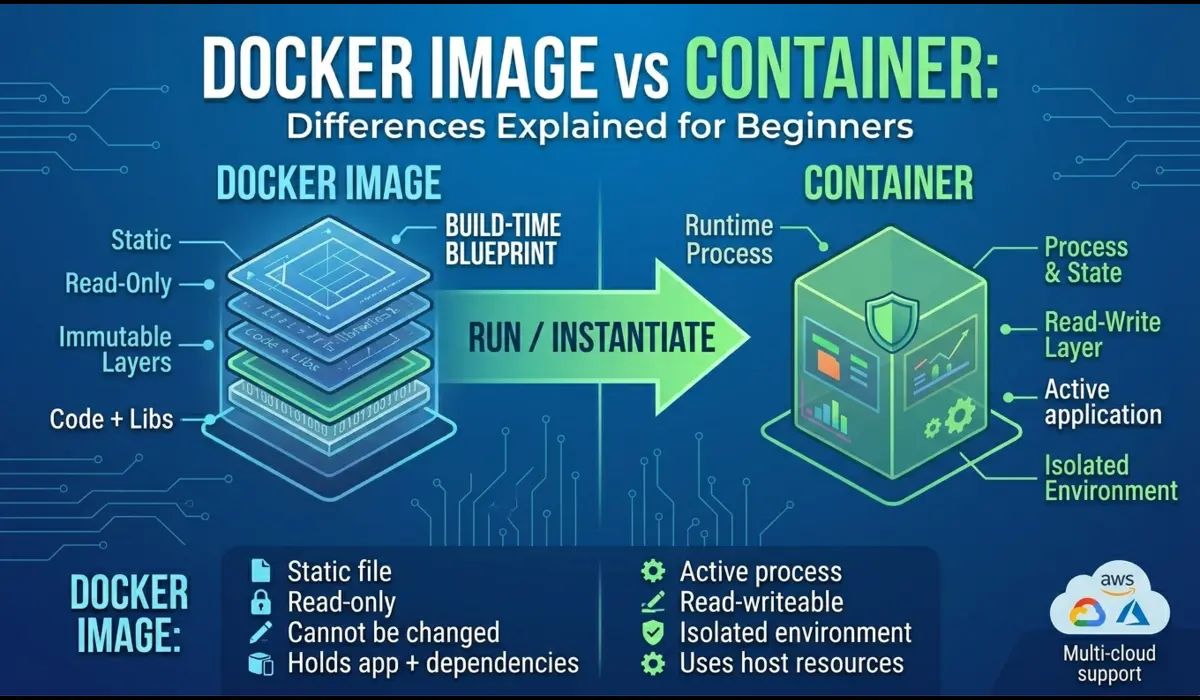
A Docker image is a read-only, static blueprint for your application. It contains everything your app needs to run: the operating system base, runtime (Node.js, Python, Java, etc.), application code, libraries, environment configuration, and the startup command.
Think of it like a baking mould. The mould itself does not produce anything on its own — but once you pour batter into it and bake it, you get a cake. The mould is the image. The cake is the container.
Images are built using a Dockerfile — a plain text file with instructions that Docker executes layer by layer. Each instruction (RUN, COPY, ENV) creates a new layer, and Docker caches these layers to speed up future builds.
One critical property of images: they are immutable. Once built, an image does not change. If you need to update your app, you rebuild the image with a new tag. This is what makes Docker deployments predictable — you are never surprised by drift between environments because every container built from the same image is identical.
In real production setups, images are stored in a container registry — Docker Hub, AWS ECR, Google Artifact Registry, or a private registry. Your CI/CD pipeline builds a new image on every merge to main, tags it with the commit SHA or version number, and pushes it to the registry. Kubernetes then pulls that specific image tag to run the workload.
💡 Pro Tip: Always tag your images with a specific version (e.g., myapp:1.4.2 or myapp:abc123). Using :latest in production is a common mistake that causes unexpected deployments when the tag gets overwritten.
What Is a Docker Container?
A container is a running instance of an image. When you run a Docker image, Docker creates a container — a live, isolated process that has its own filesystem (based on the image), its own network interface, and its own process space.
If the image is the mould, the container is the actual cake. You can bake multiple cakes from the same mould — and similarly, you can run multiple containers from the same image simultaneously. Each one is independent.
Containers have a lifecycle: they are created, started, stopped, and eventually removed. While a container is running, it can write files, open network connections, and consume CPU and memory. But here is the important part — any changes made inside a running container are not saved back to the image. When the container stops and is removed, those changes are gone unless you have explicitly mounted a persistent volume.
This is why containers are considered ephemeral. In production Kubernetes environments, containers are treated as disposable. A pod crashes, Kubernetes starts a new one from the same image. The expectation is that your container can die at any time and the system stays healthy — which is why you should never store important state inside a container’s filesystem.
💡 Pro Tip: If you find yourself SSHing into a container and manually editing files, that is a workflow problem. Any change that matters belongs in the Dockerfile or application code — not in a live container.
Key Differences: Docker Image vs Container
Here is a clear side-by-side comparison. This is the table I wish I had when I was learning:
| Property | Docker Image | Docker Container | Why It Matters |
|---|---|---|---|
| Nature | Static blueprint | Running process | One is code, one is execution |
| State | Immutable | Mutable (while running) | Changes in containers are lost on removal |
| Storage | Stored in a registry | Lives on the host | Images are versioned and shareable |
| Creation | docker build | docker run | Different commands, different results |
| Lifespan | Persists until deleted | Can be stopped/removed | Images are durable; containers are ephemeral |
| Multiplicity | One image | Many containers from one image | Horizontal scaling is built in |
Real-World Example: Deploying a Node.js App
Let me walk you through a complete example. Imagine you are deploying a simple Node.js API. Here is how images and containers work together in practice.
Step 1: Write a Dockerfile (Define the Image)
FROM node:20-alpine


WORKDIR /app


COPY package*.json ./
RUN npm ci --only=production


COPY . .


EXPOSE 3000
CMD ["node", "server.js"]
This Dockerfile defines the image. It is not running anything yet — it is just instructions.
Step 2: Build the Image
docker build -t my-api:1.0.0 .Docker reads your Dockerfile and creates an image named my-api with the tag 1.0.0. This image now sits on your machine (or in a registry after you push it). Nothing is running yet.
Step 3: Run a Container from the Image
docker run -d -p 3000:3000 --name my-api-prod my-api:1.0.0Now Docker takes the image and creates a live, running container from it. The -d flag runs it in detached mode (background), -p maps port 3000 on your host to port 3000 in the container, and –name gives it a readable name.
Step 4: Verify It Is Running
docker ps


CONTAINER ID   IMAGE           COMMAND           STATUS         PORTS
a3b1f9d2e8c4   my-api:1.0.0    "node server.js"  Up 2 minutes   0.0.0.0:3000->3000/tcp
In production, you would push the image to a registry and let Kubernetes pull and run it. But the mechanics are the same — image first, container second.
Common Beginner Mistakes
1. Modifying a Container Instead of Rebuilding the Image
This is the most damaging mistake I see from people new to Docker. You have a bug, you docker exec into the running container, fix the file directly, and the app works. But the next time the container restarts — whether from a crash, a deployment, or a node failure — your fix is gone. It never made it into the image.
The correct approach: make the change in your source code, rebuild the image, and redeploy the container.
2. Using the :latest Tag in Production
It seems convenient. But :latest means different things at different times, depending on when the image was last pushed. If two engineers push changes back to back, pulling :latest gives you unpredictable results. Always use explicit version tags.
3. Confusing docker ps with docker images
docker ps shows running containers. docker images shows the images stored locally. A lot of beginners run docker ps, do not see their app, and assume Docker is broken — when in reality the image exists but no container has been started from it yet.
4. Building Unnecessarily Large Images
One mistake I often see is COPYing the entire project directory including node_modules, .git, and local config files. Always use a .dockerignore file (similar to .gitignore) to exclude what does not belong in the image.
Practical Commands Reference
Here are the Docker CLI commands you will use most often, with plain-English explanations:
Build an Image
docker build -t myapp:2.1.0 .Reads the Dockerfile in the current directory and creates an image tagged myapp:2.1.0. The period at the end is the build context — it tells Docker where to find the files.
Run a Container
docker run -d -p 8080:80 --name web myapp:2.1.0Creates and starts a container from myapp:2.1.0. -d runs it in the background. -p 8080:80 maps host port 8080 to container port 80.
List Running Containers
docker psShows all currently running containers. Add -a to see stopped containers too.
List Local Images
docker imagesLists all images stored on your local machine — name, tag, image ID, and size.
Stop and Remove a Container
docker stop web
docker rm web
Stops the container gracefully, then removes it. The image is untouched — you can run a new container from it any time.
Remove an Image
docker rmi myapp:2.1.0Deletes the image from your local machine. This does not affect any containers still running from that image.
When to Use What: Quick Decision Guide
You need an image when you want to…
- Package your application for distribution or deployment
- Store a versioned snapshot of your app in a registry
- Share a reproducible build with your team or CI/CD pipeline
- Roll back to a previous version of your app
You need a container when you want to…
- Actually run your application and serve traffic
- Test the application locally before pushing to production
- Run a one-off task like a database migration or batch job
- Debug a running process or inspect application behaviour
In real production setups, you rarely think about this distinction explicitly — your CI/CD pipeline builds images and your orchestration layer (Kubernetes, ECS, Docker Compose) manages containers. But understanding the model underneath it means you can debug problems 10x faster when things go wrong.
Conclusion
Here is the summary in one paragraph: a Docker image is a static, versioned blueprint stored in a registry. A container is a live, running instance created from that image. Images are built once and reused many times. Containers are created, run, and discarded.
The practical takeaway: if you want to change your application, change the code and rebuild the image. Never modify a running container and expect those changes to persist. Version your images explicitly. Treat containers as temporary compute — not permanent storage.
Once this mental model clicks, a lot of Docker behaviour that seemed confusing starts making sense: why containers restart with a clean state, why image layers are cached, why you can run five copies of the same service from one image without conflicts.
Start with this foundation, and everything else in Docker — volumes, networks, compose files, Kubernetes — becomes much easier to reason about.
Written by a Senior DevOps Engineer with 10+ years in production Kubernetes and Docker environments.
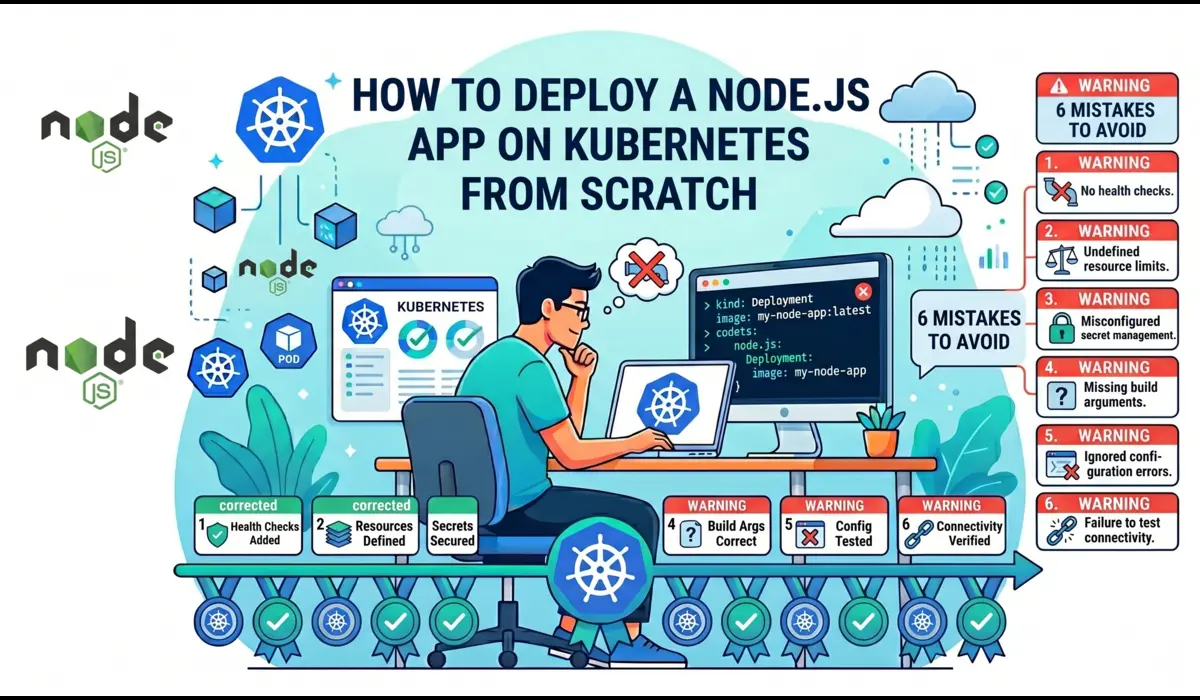
You can also read: How to deploy node.js app on kubernetes

Pratik Shinde
Pratik Shinde is a DevOps and Cloud professional based in Pune, Maharashtra, India, with hands-on experience in building and managing scalable systems. Working in top multinational Organization as Devops Engineer with experience of 10+ years. He has a strong working background in DevOps, Kubernetes, and cloud platforms, along with practical exposure to artificial intelligence and machine learning concepts. He also shares knowledge and learning resources on platforms like LinkedIn and other social channels, aiming to simplify complex topics and make them accessible to a wider audience. Linkedin URL: https://www.linkedin.com/in/pratikshinde8494/ . Github URL: https://github.com/PratikShindeGithub