A Production Debugging Reference for Devops Engineers.
The Container That Won’t Start — And 11 Other Problems
It is 11:47 PM. Your deployment pipeline just turned green, but the service is not responding. You open a terminal and run docker ps, only to find the container exited 4 seconds after it started. The logs say nothing useful. You have no idea where to begin.
I have been there more times than I would like to admit — across microservices platforms handling tens of thousands of requests per minute, where a single misbehaving container can cascade into an availability incident within minutes. Docker is a remarkably stable runtime, but when it breaks, the failure modes are surprisingly diverse. One time it is a port conflict that has been silently lurking since a colleague tested something locally. Another time it is a 2 GB layer that silently bloated an image and filled the host disk overnight.
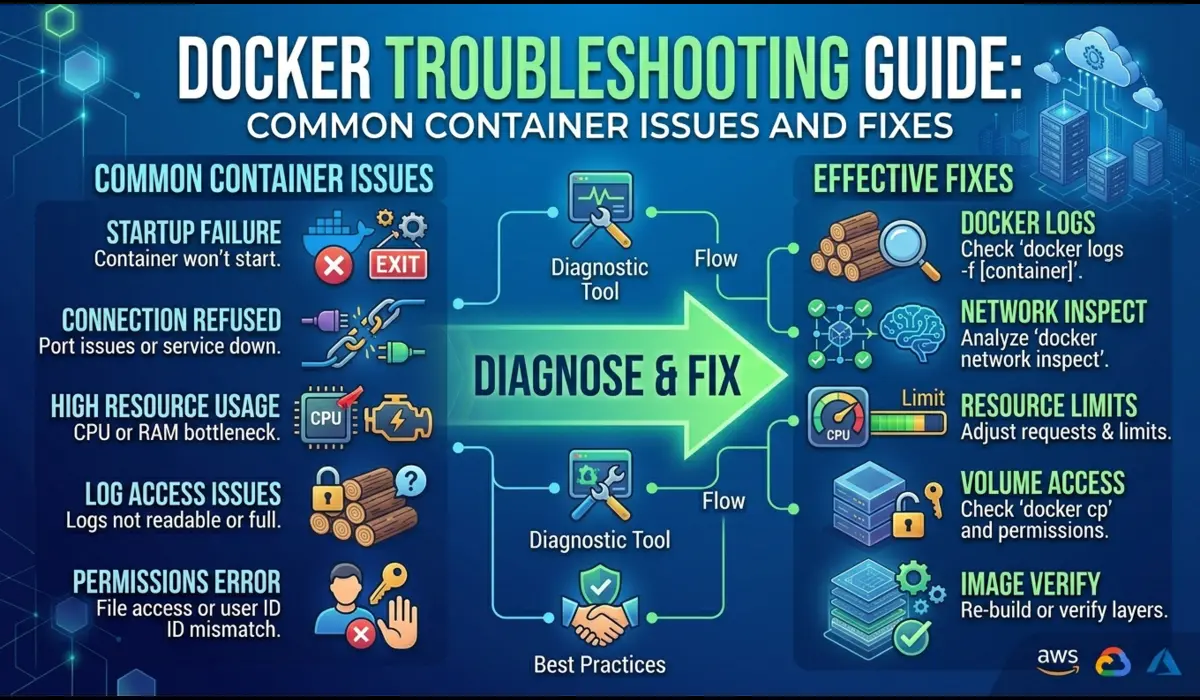
This guide is not a glossary of Docker concepts. It is a practical debugging playbook organized by symptom, with the exact commands and reasoning I use to isolate issues fast in production.
How Experienced Engineers Approach Docker Debugging
The single most important habit in Docker troubleshooting is to resist the urge to restart things immediately. When a container crashes, every restart destroys the state of the previous run. The logs from the failed attempt, the exact environment, the resource usage at the moment of failure — all of it is gone once the container restarts.
My standard approach follows four questions in order: What is the exit signal? What did the container log before dying? What does the host environment look like at the time of failure? Does the failure reproduce with a minimal configuration? That sequence narrows the problem space from hundreds of possibilities to two or three within minutes.
Start with docker inspect before docker restart. Inspect preserves the container’s full configuration and exit information even after it has stopped. Restarting erases it.
Common Docker Issues and How to Fix Them
Issue 1: Container Exits Immediately
Symptom: You run docker run or docker-compose up, the container appears in docker ps for a second, then vanishes. Status shows Exited (1) or Exited (2).
What is happening internally: The process defined as your ENTRYPOINT or CMD crashed or finished immediately. Docker does not keep a container alive after its main process exits — it has no concept of a service manager like systemd. If your entrypoint script hits an error and exits, the container follows.
Debugging Steps
First, find the container — even stopped containers are listed with -a:
$ docker ps -a
CONTAINER ID   IMAGE           COMMAND           STATUS
a3f9b2c10d44   myapp:latest    "./start.sh"      Exited (1) 12 seconds ago
Then pull the logs from the stopped container. This is the most important step and the one most developers skip:
$ docker logs a3f9b2c10d44
Error: DATABASE_URL environment variable is not set
Process exited with code 1
If logs are empty, the process may be crashing before any output is flushed. Try running an interactive shell in the same image to debug the startup script directly:
# Override entrypoint to get a shell instead
$ docker run -it --entrypoint /bin/sh myapp:latest
# Now manually run your start script and watch for errors
$ ./start.sh
Pro Tip: Configure your applications to write to stdout/stderr, not to log files inside the container. Docker only captures stdout/stderr — if your app logs to /var/log/app.log, docker logs shows nothing and you are debugging blind.
Issue 2: Port Binding Failures
Symptom: Container fails to start with an error like: bind: address already in use or listen tcp 0.0.0.0:8080: bind: address already in use.
What is happening internally: A process on the host (or another container) is already bound to the same port. Docker cannot create a second listener on the same port and IP combination, so the container process fails to bind and exits.
Debugging Steps
Find what is using the port on the host:
# On Linux
$ sudo lsof -i :8080
$ sudo ss -tlnp | grep 8080

# On macOS
$ lsof -i :8080
$ docker ps –format ‘table {{.Names}}\t{{.Ports}}’
NAME PORTS
Pro Tip: In docker-compose, define explicit port mappings per environment using .env files. Avoid hardcoding host ports in docker-compose.yml — this is a common source of port conflicts on shared development machines.
Issue 3: High CPU or Memory Usage
Symptom: The host becomes sluggish. One container is consuming a disproportionate share of CPU or memory. In extreme cases, the container is OOM-killed.
What is happening internally: Docker containers share the host’s kernel and resource pool. Without explicit resource limits, a single runaway container can starve every other process on the node — including the Docker daemon itself.
Debugging Steps
docker stats gives you a live view of resource usage across all running containers:
$ docker stats --no-stream
CONTAINER ID   NAME            CPU %   MEM USAGE / LIMIT   MEM %
b4c1d2e3f456   payment-api     312%    1.8GiB / 2GiB       90%
a1b2c3d4e567   redis           0.5%    48MiB / 256MiB      18%
Pro Tip: Setting –memory-swap equal to –memory disables swap for the container. This forces the OOM killer to act faster rather than letting the container slowly degrade the host by consuming swap space.
Issue 4: Disk Space Issues
Symptom: Containers fail to start with no space left on device. docker build fails midway. The host disk usage is unexpectedly high.
What is happening internally: Docker stores images, container layers, volumes, and build cache on the host filesystem. Over time, pulled images, dangling layers from failed builds, and stopped containers accumulate — often without anyone noticing until the disk hits 100%.
Debugging Steps
Get a breakdown of what Docker is using on disk:
If you have reclaimable space, run a targeted prune. Be careful — docker system prune with the -a flag removes all unused images, including ones you might want to keep:
# Safe: remove only stopped containers, dangling images, unused networks
$ docker system prune

# More aggressive: also removes all unused images (not just dangling)
$ docker system prune -a

# Clear build cache only
$ docker builder prune
Pro Tip: Set up a cron job to run docker system prune on CI/CD agents weekly. Build agents accumulate cache and dangling layers faster than any other environment, and disk exhaustion on a build agent silently blocks pipelines for the entire team.
Issue 5: Networking Problems Between Containers
Symptom: Container A cannot reach Container B. curl from one container to another times out or returns connection refused. Works on the developer’s machine but not in staging.
What is happening internally: Docker creates isolated virtual networks. Containers on different networks cannot communicate by default. The ‘works on my machine’ problem usually comes down to two containers being on different bridge networks, or one container using the host network mode while another uses bridge.
Debugging Steps
List all Docker networks and identify which containers are attached to which:
$ docker network ls
NETWORK ID     NAME              DRIVER    SCOPE
a1b2c3d4e567   bridge            bridge    local
b2c3d4e5f678   myapp_default     bridge    local
c3d4e5f6a789   host              host      local

$ docker network inspect myapp_default
Test connectivity from inside the failing container. Use the container name as the hostname — Docker’s embedded DNS resolves container names to IPs within the same network:
$ docker exec -it frontend-app /bin/sh
# Inside container:
$ curl http://backend-api:3000/health
$ ping backend-api
$ nslookup backend-api
Pro Tip: Never rely on container IP addresses for inter-container communication. IPs change every time a container restarts. Use container names or service names (in Docker Compose) — Docker’s internal DNS always resolves them correctly.
Issue 6: Permission Denied Errors
Symptom: Container starts but operations fail immediately with permission denied. Files inside the container are inaccessible. Mounted volumes return EACCES errors.
What is happening internally: Containers run as a specific user (defined by the USER directive in the Dockerfile). When you bind-mount a host directory, the container user must have permission to read or write to that path. A mismatch between the container’s UID and the file’s owner UID on the host causes these failures.
Debugging Steps
Check which user the container is running as, and what the file ownership looks like inside:
# Check the container user and file ownership
$ docker exec -it mycontainer id
uid=1000(appuser) gid=1000(appuser)

$ docker exec -it mycontainer ls -la /data
drwxr-xr-x  2 root root 4096 Apr 18 03:00 uploads
If the container user is UID 1000 but the mounted directory is owned by root, writes will fail. The fix is to match the UIDs or adjust directory permissions on the host before mounting:
# On the host, change ownership to match the container user's UID
$ sudo chown -R 1000:1000 /opt/app/data

# Or, temporarily run container as root for debugging
$ docker run -u root myapp:latest
Pro Tip: In Dockerfiles, always create the application user with an explicit UID that you control (e.g., useradd -u 1500 appuser). This makes host-side permission management predictable across different base images, which often use different default UIDs for common usernames.
Issue 7: Image Pull Errors
Symptom: Container fails to start with ErrImagePull or ImagePullBackOff. In Compose environments, docker-compose up hangs or fails with a 401 Unauthorized or manifest unknown error.
What is happening internally: The Docker daemon cannot retrieve the image from the registry. This could be an authentication failure, a nonexistent tag, a network connectivity issue to the registry, or a digest mismatch.
Debugging Steps
Try pulling the image manually to get the unfiltered error:
$ docker pull myregistry.example.com/myapp:v1.2.3
Error response from daemon: pull access denied for myregistry.example.com/myapp,
repository does not exist or may require 'docker login'
If it is an auth issue, log in first:
$ docker login myregistry.example.com
# For AWS ECR:
$ aws ecr get-login-password --region us-east-1 | \
  docker login --username AWS --password-stdin 123456789.dkr.ecr.us-east-1.amazonaws.com
If the tag does not exist, inspect what tags are available. For Docker Hub, this is visible in the web UI. For private registries, use the registry API or your registry’s CLI tool.
Pro Tip: Pin images to digest (sha256:…) instead of mutable tags like latest in production manifests. A mutable tag can silently change between deployments, making pull errors from tag rotation impossible to diagnose without version history.
Issue 8: Docker Daemon Not Running
Symptom: Any docker command returns Cannot connect to the Docker daemon at unix:///var/run/docker.sock. Is the docker daemon running?
What is happening internally: The Docker CLI communicates with the Docker daemon (dockerd) through a Unix socket. If the daemon is not running, that socket does not exist and every command fails at the connection step.
Debugging Steps
$ docker login myregistry.example.com
# For AWS ECR:
$ aws ecr get-login-password --region us-east-1 | \
  docker login --username AWS --password-stdin 123456789.dkr.ecr.us-east-1.amazonaws.com
If the daemon fails to start, the journal log usually tells you why: disk full, port conflict on the API socket, or a corrupted storage driver state. A corrupted overlay2 storage directory sometimes requires removing /var/lib/docker — but be aware this deletes all local images and volumes.
Pro Tip: Enable the Docker daemon’s live-restore option. With live-restore: true in /etc/docker/daemon.json, containers continue running during daemon restarts. This prevents service disruption on nodes when you need to upgrade or restart the daemon.
Issue 9: Logs Not Showing Useful Information
Symptom: docker logs returns empty output or shows only irrelevant startup messages. You know something went wrong but cannot find the error.
What is happening internally: Docker captures what the process writes to file descriptor 1 (stdout) and 2 (stderr). If the application writes logs to a file, or buffers output without flushing before exit, docker logs sees nothing useful.
Debugging Steps
# Stream logs in real time
$ docker logs -f mycontainer

# Logs with timestamps — often reveals timing of events
$ docker logs -t mycontainer

# Last 50 lines
$ docker logs --tail 50 mycontainer

# Logs since a specific time
$ docker logs --since 2026-04-18T02:00:00 mycontainer
If logs are genuinely empty, check if the application is using a buffered logger. In Python, set PYTHONUNBUFFERED=1. In Node.js, use process.stdout.write() instead of console.log() if you suspect buffering. In Java, use -Djava.io.tmpdir or configure the logger to flush on every write.
# Fix Python log buffering at runtime
$ docker run -e PYTHONUNBUFFERED=1 myapp:latest
Pro Tip: In production, configure a log driver that ships logs to a centralized system (Fluentd, Loki, Datadog). The local docker logs command is useful for quick debugging, but it reads from the daemon’s local log store — which can fill up and truncate if json-file driver max-size is not configured.
Common Mistakes Developers Make
- Restarting the container before reading the logs — you lose the exit state and error context from the failed run.
- Using docker restart when the container is in a crash loop — this compounds the problem rather than diagnosing it.
- Assuming the error is in the application when it is actually in the environment — missing env vars, wrong secrets, or inaccessible config files account for a significant portion of container failures.
- Running containers as root in production — this masks permission issues during development that surface as security vulnerabilities in production.
- Not setting resource limits — a container without limits can consume all available memory on a node and trigger OOM kills for unrelated workloads.
- Using latest as the image tag in production — mutable tags make it impossible to diagnose whether a new image version caused a failure.
- Bind-mounting entire application directories during development and then wondering why the production image behaves differently — the code inside the image and the mounted code diverge.
Quick Docker Debugging Checklist
Run through this checklist in order before drawing any conclusions. Most issues reveal themselves by step 4.
- Run docker ps -a — is the container running, stopped, or restarting?
- Check docker logs <container_id> — is there an error message?
- Run docker inspect <container_id> — check exit code, environment, mount paths, and network mode.
- Run docker stats — is any container consuming unusual CPU or memory?
- Check docker system df — is disk space a factor?
- Run docker network inspect <network_name> — are the relevant containers on the same network?
- Exec into the container with docker exec -it <id> /bin/sh — can you reproduce the problem interactively?
- Check systemctl status docker (on Linux) — is the daemon itself healthy?
Quick Reference: Issue, Signal, and Fix
| Issue | Primary Signal | First Command | Fix |
| Container exits immediately | Non-zero exit code in docker ps | docker logs <id> | Fix entrypoint / config |
| Port already in use | Bind error on startup | lsof -i :<port> | Kill conflicting process or remap port |
| OOM / high memory | Container OOM-killed | docker stats | Set –memory limit or fix leak |
| Image pull error | ErrImagePull / 401 | docker pull manually | Fix registry auth or image tag |
| Network: container unreachable | curl timeout inside container | docker network inspect | Put containers on same network |
| Permission denied | Exit 126 / EACCES errors | docker inspect + ls -la | Fix file ownership or run as root |
| Disk full | No space left on device | docker system df | docker system prune |
| Daemon not running | Cannot connect to Docker daemon | systemctl status docker | Start / restart daemon |
Conclusion
Docker containers fail in predictable ways. The exit code tells you the category of failure. The logs tell you what the application saw before it expired The inspect output tells you what Docker configured. Between those three data sources, the root cause of almost every container issue is findable within five minutes of structured investigation.
The engineers who resolve Docker issues fast are not the ones who know more commands — they are the ones who look before they act. They check docker logs before restarting. They read docker inspect before adjusting resource limits. They verify network connectivity before blaming the application.
Build that habit and Docker troubleshooting goes from frustrating guesswork to a repeatable, five-minute process regardless of what the failure mode is.
The most important Docker debugging command is the one you run before you restart anything: docker logs. Always read the container’s last words before resetting the scene.
Related Post: How to reduce docker image size

Pratik Shinde
Pratik Shinde is a DevOps and Cloud professional based in Pune, Maharashtra, India, with hands-on experience in building and managing scalable systems. Working in top multinational Organization as Devops Engineer with experience of 10+ years. He has a strong working background in DevOps, Kubernetes, and cloud platforms, along with practical exposure to artificial intelligence and machine learning concepts. He also shares knowledge and learning resources on platforms like LinkedIn and other social channels, aiming to simplify complex topics and make them accessible to a wider audience. Linkedin URL: https://www.linkedin.com/in/pratikshinde8494/ . Github URL: https://github.com/PratikShindeGithub