Introduction
Nobody learns Linux commands because they are interesting in isolation. You learn them because a production server is behaving strangely at midnight and you have an SSH session and thirty seconds before your manager joins the call. That is the real context.
I have been running Linux systems in production for over a decade, on bare metal in data centres, on EC2 instances, in GCP VMs, inside containers, and on edge nodes that should have been decommissioned two years ago.
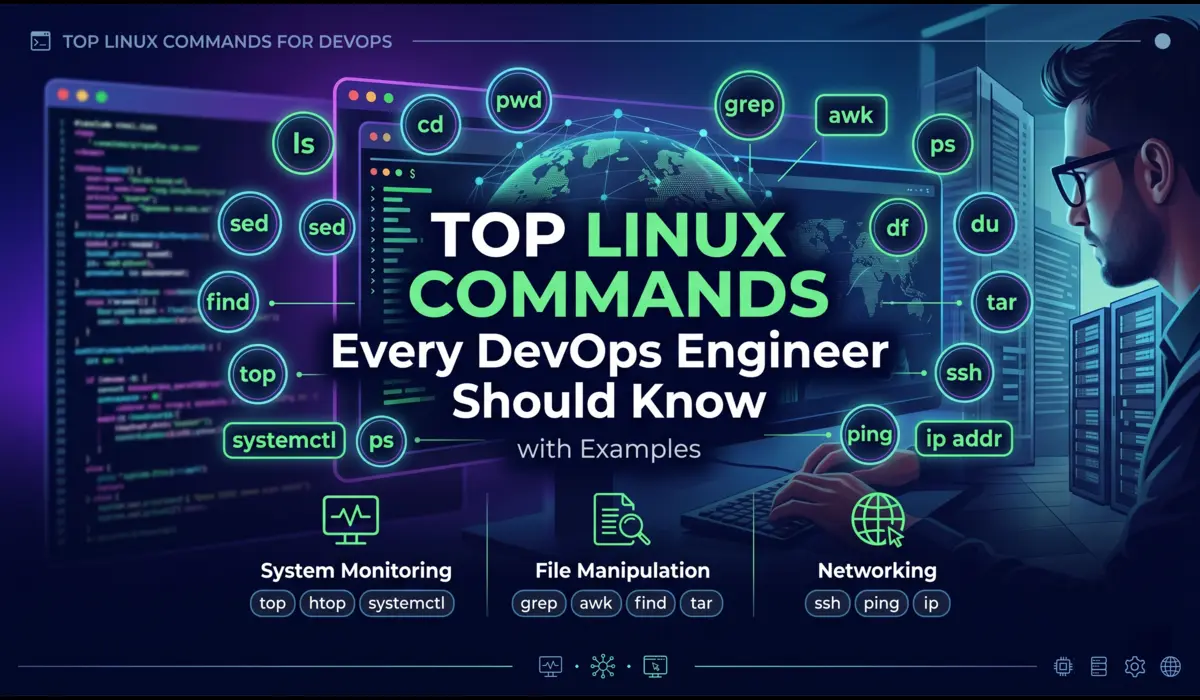
The commands in this guide are the ones that come up constantly. Not everything. Not a man page. Just the tools I actually reach for when something breaks, when I need to understand what a system is doing, or when I am setting up infrastructure and need to verify it quickly.
This article is not a beginner glossary. If you want to know that ls lists files, you already know that. What I will show you is how these commands fit together in real scenarios — what flags actually matter, when to chain commands, and what mistakes will cost you time or data.
Navigation and File Basics
ls — More Than Listing Files
Everyone uses ls. Few people use it well. The flags you pick change how fast you can triage a problem.
Real scenario: I was debugging why a cron job was silently failing. The script was in /opt/scripts/ and it had been there for years. Turned out a recent deploy had changed the ownership and the cron user could no longer execute it. A simple ls -la exposed it immediately.
# Show all files including hidden, with permissions, size, and timestamp
$ ls -la /opt/scripts/

# Sort by modification time, newest first — critical when tracking down recent changes
$ ls -lt /var/log/app/ | head -20

# Human-readable sizes
$ ls -lh /var/log/nginx/

# Recursive listing — use carefully on deep dirs
$ ls -lR /etc/nginx/ | grep '.conf'
Tip: ls -lt | head is one of the first things I run on an unfamiliar server. Seeing which files changed recently tells you a lot about what has happened on that system.
find — Locate Files Based on Actual Criteria
find is one of those commands where the basic usage is easy but the real value comes from combining predicates. I use it constantly for auditing, cleanup tasks, and debugging permission issues.
Incident example: A disk fill alert fired on a node running batch jobs. df showed /data was at 99%. I needed to find what was eating space, fast.
# Find files larger than 500MB in /data
$ find /data -type f -size +500M -exec ls -lh {} \;

# Find files modified in the last 24 hours
$ find /var/log -type f -mtime -1

# Find and delete files older than 30 days (dry-run first with -print)
$ find /tmp -type f -mtime +30 -print
$ find /tmp -type f -mtime +30 -delete

# Find files with specific permissions (world-writable — security audit)
$ find /etc -type f -perm -o+w

# Find and execute: change ownership recursively on specific dirs only
$ find /opt/app -type d -exec chmod 755 {} \;
The -exec flag is powerful but be careful with destructive operations. Always run with -print first. And find / without a pruning strategy on a busy system is a gift to nobody — scope it to the directory you actually care about.
grep — Filtering Signal from Noise
grep is the command I use most often when diagnosing application issues. The trick is knowing which flags to combine and when to give up on grep and reach for awk instead.
Real scenario: A payment service was logging intermittent 500 errors but the log volume was enormous — several hundred thousand lines per hour. I needed to isolate the errors, extract timestamps, and figure out whether they clustered around a specific time.
# Basic: search for ERROR in application log
$ grep 'ERROR' /var/log/app/application.log

# Case-insensitive, show line numbers
$ grep -in 'timeout' /var/log/app/application.log

# Show 3 lines before and after each match (context matters)
$ grep -B3 -A3 'connection refused' /var/log/app/application.log

# Recursive search across all log files in a directory
$ grep -r 'NullPointerException' /var/log/app/

# Invert match — show lines that do NOT contain a pattern
$ grep -v 'healthcheck' /var/log/nginx/access.log | grep '500'

# Count matches
$ grep -c 'ERROR' /var/log/app/application.log

# Extended regex — match multiple patterns
$ grep -E '(ERROR|FATAL|CRITICAL)' /var/log/app/application.log
Tip: grep -v is underused. Filtering out noise (health checks, OPTIONS requests, routine debug lines) often reveals the real signal faster than filtering in specific patterns.
Process Management
top and htop — Reading System State Quickly
top gives you a real-time view of CPU, memory, and process state. It is usually the first thing I open when a node is under load and I need to understand what is consuming resources.
Incident example: A Kubernetes worker node went NotReady. SSH access was still up. I ran top and saw a single process consuming 98% of one core and several hundred MB of memory. It was a zombie child process from a failed batch job that had never been reaped. The kubelet was struggling to communicate with the API server because the node was IO-starved.
# Standard top — interactive, refreshes every 3s by default
$ top

# Sort by memory inside top: press Shift+M
# Sort by CPU inside top: press Shift+P
# Show full command path: press 'c'

# Non-interactive, single snapshot — useful in scripts
$ top -bn1 | head -20

# htop: better UI, mouse support, tree view
$ htop

# Filter htop by specific user
$ htop -u appuser
htop is worth installing on every server you manage regularly. The tree view (F5 in htop) shows parent-child process relationships, which is invaluable when tracing zombie processes or understanding how a service forks workers.
ps — Snapshot Process State
Where top is interactive and live, ps gives you a point-in-time snapshot you can manipulate, pipe, sort, and filter. I use it when I need more control than top provides.
# Classic: show all processes with full detail
$ ps aux

# Sort by CPU descending — find the top offender
$ ps aux --sort=-%cpu | head -15

# Sort by memory descending
$ ps aux --sort=-%mem | head -15

# Find processes by name
$ ps aux | grep nginx

# Show process tree
$ ps auxf

# Show specific columns — PID, PPID, CPU, memory, command
$ ps -eo pid,ppid,%cpu,%mem,cmd --sort=-%cpu | head -20

# Find all processes owned by a specific user
$ ps -u appuser
kill — Terminating Processes Correctly
Most engineers know kill command. Fewer understand the signal model. Sending the wrong signal can cause data corruption, leave lock files behind, or not actually terminate the process.
# Graceful shutdown — send SIGTERM (default), gives process time to clean up
$ kill <PID>

# Force kill — SIGKILL, bypasses all handlers, use as last resort
$ kill -9 <PID>

# Kill all processes matching a name — careful in production
$ pkill nginx

# Graceful reload (HUP) — nginx and many daemons re-read config without full restart
$ kill -HUP $(cat /var/run/nginx.pid)

# List all signals
$ kill -l
Rule: Never reach for kill -9 first. Most well-behaved processes will exit cleanly on SIGTERM. If they do not within 30 seconds, then escalate to SIGKILL. Using -9 prematurely on databases, message brokers, or stateful services can corrupt data.
Disk and Storage
df — Disk Space at a Glance
Disk-full incidents are preventable almost 100% of the time if you check before deployments. I have been burned exactly once by deploying to a server without checking disk space. A 4 GB log file from the previous deployment had not been rotated and the new deployment’s database migration failed midway because it could not write temporary files.
# Human-readable, show all mounted filesystems
$ df -h

# Show filesystem type
$ df -hT

# Show inode usage — disk can be 'full' due to inode exhaustion, not space
$ df -i

# Check a specific path
$ df -h /var/lib/docker
Inode exhaustion is a real production gotcha. If df -h shows space available but you are still getting ‘No space left on device’ errors, run df -i. Thousands of small temporary files can exhaust inodes while using almost no actual disk space. I have seen this happen with misconfigured session storage writing millions of small files to a single directory.
du — Finding What Is Actually Using Space
df tells you that a filesystem is full. du tells you where the space went. These two commands belong in the same breath.
# Show directory sizes, one level deep, human-readable
$ du -h --max-depth=1 /var

# Find top 10 largest directories under /var
$ du -h /var | sort -rh | head -10

# Find top 10 largest files in a directory tree
$ find /var -type f -exec du -h {} + | sort -rh | head -10

# Total size of a specific directory
$ du -sh /var/log/

# Exclude certain directories (e.g., proc, sys on root)
$ du -h --exclude=/proc --exclude=/sys / --max-depth=2 2>/dev/null | sort -rh | head -20
Log Inspection
tail — Following Logs in Real Time
tail -f is one of the most used commands in incident response. When you need to watch what is happening in a log right now, as events fire, this is the tool.
# Follow a log file in real time
$ tail -f /var/log/app/application.log

# Follow with grep — only show lines matching the pattern
$ tail -f /var/log/app/application.log | grep 'ERROR'

# Show last 100 lines (instead of default 10)
$ tail -100 /var/log/nginx/error.log

# Follow multiple files at once
$ tail -f /var/log/nginx/access.log /var/log/nginx/error.log

# Follow with timestamps visible — useful if log format lacks them
$ tail -f /var/log/app/application.log | ts '[%Y-%m-%d %H:%M:%S]'
less — Reading Large Files Without Loading Them
# Open a file in less
$ less /var/log/syslog

# Search forward: type /pattern  then n for next, N for previous
# Search backward: type ?pattern

# Jump to end of file
$ less +G /var/log/app/application.log

# Follow mode (like tail -f but with search capability)
$ less +F /var/log/app/application.log

# Open at a specific line number
$ less +100 /var/log/app/application.log
Opening a 2 GB log file with cat or nano is a bad day. less loads the file lazily — you only read what you navigate to. It handles large files gracefully and has useful search built in.
Note: less +F is underrated. It combines the live-follow capability of tail -f with the ability to hit Ctrl+C and immediately search backwards through the buffer. In an incident, that ability to stop, search, and then resume following is faster than switching between tail and cat.
journalctl — Systemd Service Logs
If you are running systemd-managed services (which is most Linux systems now), journalctl is your primary log tool for service output, boot logs, and kernel messages. It replaces grepping through /var/log/syslog for service-specific output.
Incident example: A custom metrics exporter service was failing on boot, but only on certain nodes. The systemd unit would start, the process would crash, and systemd would retry. journalctl gave me the exact error in five seconds.
# Show logs for a specific service
$ journalctl -u nginx.service

# Follow logs in real time
$ journalctl -fu nginx.service

# Show logs since a specific time
$ journalctl -u myapp.service --since '2026-04-20 02:00:00'

# Show logs for last boot
$ journalctl -b

# Show only error-level and above
$ journalctl -p err -u myapp.service

# Show last 50 lines and follow
$ journalctl -n 50 -fu myapp.service

# Output in JSON (useful for log shipping)
$ journalctl -u myapp.service -o json | head -5
Networking
curl — Testing HTTP from the Terminal
curl is the most versatile HTTP debugging tool available at the command line. I use it to test APIs, check service health, debug authentication issues, and measure response times. It is cleaner and more scriptable than any GUI tool.
# Basic GET request
$ curl https://api.example.com/health

# Show response headers only
$ curl -I https://api.example.com/health

# Show both headers and body
$ curl -v https://api.example.com/health

# POST with JSON body
$ curl -X POST https://api.example.com/orders \
     -H 'Content-Type: application/json' \
     -H 'Authorization: Bearer <token>' \
     -d '{"item_id": 42, "qty": 1}'

# Test with a specific DNS resolution (bypass DNS, test a specific backend)
$ curl --resolve api.example.com:443:10.0.1.25 https://api.example.com/health

# Measure time breakdown — DNS, connect, TTFB, total
$ curl -o /dev/null -s -w 'DNS: %{time_namelookup}\nConnect: %{time_connect}\nTTFB: %{time_starttransfer}\nTotal: %{time_total}\n' https://api.example.com/

# Follow redirects
$ curl -L https://short.link/abc

# Skip TLS verification (debugging only, never in production scripts)
$ curl -k https://internal-service.local/health
The curl timing breakdown is one I use regularly when investigating latency regressions. It tells you immediately whether the problem is in DNS resolution, TCP connection establishment, or actual application response time.
ss — Socket and Connection State
ss replaced netstat on most modern Linux distributions. It is faster and provides richer output. I use it to check which ports are listening, how many connections are in a given state, and whether a service is actually bound to the interface I expect.
# Show all listening TCP sockets
$ ss -tlnp

# Show all connections (TCP) with process info
$ ss -tnp

# Show established connections only
$ ss -tn state established

# Check what is listening on a specific port
$ ss -tlnp | grep ':8080'

# Count connections per state — useful for diagnosing connection exhaustion
$ ss -tan | awk '{print $1}' | sort | uniq -c | sort -rn

# Show TIME_WAIT count (high numbers indicate connection recycling pressure)
$ ss -tan state time-wait | wc -l
Tip: If you see a large number of TIME_WAIT connections, it usually means the service is opening and closing many short-lived connections — common in services that do not use connection pooling to a database. It is a performance signal, not just a curiosity.
File Permissions and Ownership
chmod and chown — Setting Permissions Correctly
Permission problems are responsible for a surprising percentage of deployment failures and security incidents. Understanding the octal notation and the difference between directory and file permissions is non-negotiable for production work.
# Make a script executable by owner only
$ chmod 700 /opt/scripts/deploy.sh

# Standard web file permissions: owner rw, group r, others r
$ chmod 644 /var/www/html/index.html

# Standard directory permissions: owner rwx, group rx, others rx
$ chmod 755 /var/www/html/

# Recursive chmod on directories only (not files)
$ find /opt/app -type d -exec chmod 755 {} \;

# Recursive chmod on files only
$ find /opt/app -type f -exec chmod 644 {} \;

# Change owner and group
$ chown appuser:appgroup /opt/app/config.yaml

# Recursive chown
$ chown -R appuser:appgroup /opt/app/

# Change group only
$ chgrp www-data /var/log/app/
One mistake I see repeatedly: using chmod -R 777 to ‘fix’ a permission problem. That is not a fix, it is a security incident waiting to happen. Take the time to understand what user the application runs as and give precisely the permissions it needs, no more.
Text Processing
awk — Extracting Specific Fields from Structured Output
awk is a column processor. When your output has predictable structure — log lines, /proc data, network output — awk lets you isolate exactly what you need without writing a Python script.
# Print the second column of output (e.g., PIDs from ps output)
$ ps aux | awk '{print $2}'

# Sum the RSS memory column from ps (column 6)
$ ps aux | awk '{sum += $6} END {print sum/1024 " MB"}'

# Extract IP addresses from nginx access log
$ awk '{print $1}' /var/log/nginx/access.log | sort | uniq -c | sort -rn | head -20

# Print lines where CPU usage (column 3) exceeds 50%
$ ps aux | awk '$3 > 50 {print $0}'

# Field separator: parse CSV or colon-delimited files
$ awk -F: '{print $1, $3}' /etc/passwd

# Print lines between two patterns
$ awk '/START/,/END/' /var/log/app/application.log
sed — In-place Text Transformations
sed is for substitution and line-based transformations. I use it most often for config file manipulation in automation scripts, stripping ANSI codes from captured output, and extracting data from structured text.
# Substitute first occurrence on each line
$ sed 's/old_value/new_value/' file.txt

# Substitute all occurrences (g flag)
$ sed 's/old_value/new_value/g' file.txt

# In-place edit (modify the file directly) — always test without -i first
$ sed -i 's/localhost/db.internal/g' /opt/app/config.yaml

# In-place with backup
$ sed -i.bak 's/localhost/db.internal/g' /opt/app/config.yaml

# Delete lines matching a pattern
$ sed '/^#/d' /etc/nginx/nginx.conf

# Print only specific line numbers
$ sed -n '100,200p' /var/log/app/application.log

# Strip ANSI escape codes from output
$ sed 's/\x1b\[[0-9;]*m//g' captured_output.txt
Note: Always test sed substitutions without -i first. Add the -n flag with p to preview what will change. In-place edits on the wrong file in a production config directory are difficult to recover from without version control.
Archives and File Transfer
tar — Packing and Unpacking Archives
tar is used in almost every deployment, backup, and log archival workflow. Getting the flags wrong means either not compressing, creating the archive in the wrong location, or overwriting things you did not intend to touch.
# Create a compressed archive (gzip)
$ tar -czvf archive.tar.gz /opt/app/

# Extract to a specific directory
$ tar -xzvf archive.tar.gz -C /opt/restore/

# List contents without extracting
$ tar -tzvf archive.tar.gz

# Compress with bzip2 (better ratio, slower)
$ tar -cjvf archive.tar.bz2 /opt/app/

# Create archive excluding a directory
$ tar -czvf app_backup.tar.gz --exclude='/opt/app/logs' /opt/app/

# Append files to an existing tar (not gzip)
$ tar -rvf archive.tar newfile.txt

# Extract a single file from an archive
$ tar -xzvf archive.tar.gz opt/app/config/settings.yaml
Flag breakdown: c = create, x = extract, z = gzip compression, j = bzip2 compression, v = verbose, f = file (must be followed immediately by the filename). The v flag is useful interactively but add overhead in scripts — skip it when piping or automating.
Real-World Debugging: Command Chains That Actually Work
Incident: Disk Full on an Application Server
At 6:30 AM I got an alert: deployment-server-03 had /var at 100%. Application deployments were failing because Ansible could not write temporary files. Here is the exact sequence I ran:
# Step 1: Confirm and identify which filesystem
$ df -h
# /var was at 100%

# Step 2: Find the top consumers under /var
$ du -h /var --max-depth=2 | sort -rh | head -15
# /var/log/app was 48G

# Step 3: Drill into the specific directory
$ du -h /var/log/app/ | sort -rh | head -10
# application.log.2026-04-15 was 41G

# Step 4: Verify this file is not actively being written to (safe to remove)
$ lsof /var/log/app/application.log.2026-04-15
# No output — file not open by any process

# Step 5: Remove it and confirm
$ rm /var/log/app/application.log.2026-04-15
$ df -h /var
# /var now at 34%
Root cause: log rotation was configured but the retention policy had been removed during a config management update six weeks earlier. The fix was to restore the logrotate configuration and add a Prometheus alert on disk usage above 80%.
Incident: High CPU on a Node
A Prometheus alert fired: one node in the cluster was at 95% CPU for 10 minutes. Pods were getting evicted. Here is how I triaged it:
# Step 1: SSH in, get a quick view of what is consuming CPU
$ top -bn1 | head -20

# Step 2: Sort processes by CPU
$ ps aux --sort=-%cpu | head -10
# PID 28443 — python3 /opt/etl/transform.py — 93% CPU

# Step 3: Check when this process started
$ ps -p 28443 -o pid,lstart,cmd

# Step 4: Check if this is a known scheduled job
$ crontab -l -u etluser | grep transform

# Step 5: Check the process logs
$ tail -100 /var/log/etl/transform.log
# Saw it was stuck in an infinite loop processing a malformed record

# Step 6: Kill gracefully
$ kill 28443
# Wait 30 seconds, confirm terminated
$ ps -p 28443
# No output — process gone
The malformed record had been introduced by an upstream data provider. The ETL script had no error handling for records that did not match the expected schema. Fix: add schema validation at ingestion time and add a max-runtime guard to the cron job.
Incident: Service Not Responding on Expected Port
Monitoring alerted that an internal metrics exporter was not responding. The deployment had completed successfully according to CI. Here is how I diagnosed it:
# Step 1: Check if the service is even running
$ ps aux | grep exporter
# Process was running

# Step 2: Check what port it is actually bound to
$ ss -tlnp | grep exporter
# 0.0.0.0:9100 — but monitoring was hitting :9101

# Step 3: Verify the config
$ journalctl -u node-exporter.service | tail -20
# Logs showed: listening on :9100

# Step 4: Check what changed
$ grep 'ExecStart' /etc/systemd/system/node-exporter.service
# --web.listen-address=:9100

# Problem: a recent config update changed the port from 9101 to 9100
# but the Prometheus scrape config still pointed to 9101
The service was fine. The Prometheus scrape config had not been updated to match the port change. One grep, one ss, one journalctl call — resolved in under 10 minutes.
Quick Reference: Command and Use Case
| Command | Primary Use Case | Key Flag(s) |
|---|---|---|
| ls -la | Audit file permissions and timestamps | -l (long), -a (hidden), -h (human) |
| find | Locate files by criteria: size, age, permission | -mtime, -size, -perm, -exec |
| grep | Filter log output by pattern | -r (recursive), -B/-A (context), -v (invert) |
| top / htop | Real-time CPU and memory by process | Shift+P (CPU sort), Shift+M (memory sort) |
| ps aux | Snapshot process state | –sort=-%cpu, -eo (custom columns) |
| kill | Send signals to processes | -9 (SIGKILL), -HUP (reload) |
| df -h | Check filesystem disk usage | -i (inode), -T (type) |
| du -sh | Find disk usage by directory | –max-depth, sort -rh |
| tail -f | Follow logs in real time | -n (lines), combined with grep |
| less +F | Browse and follow large log files | +G (end), +F (follow), search with / |
| journalctl | Query systemd service logs | -u (unit), -f (follow), –since |
| curl | Test HTTP endpoints | -I (headers), -v (verbose), -w (timing) |
| ss -tlnp | Check listening ports and connections | state established, -t (TCP) |
| chmod / chown | Set file permissions and ownership | -R (recursive) |
| awk | Extract and compute from structured text | -F (delimiter), field references |
| sed | In-place text substitution | -i (in-place), -i.bak (with backup) |
| tar | Create and extract archives | -czvf (create), -xzvf (extract) |
Common Mistakes That Will Ruin Your Day
rm -rf Without Checking the Path
This needs no elaborate explanation. The classic is rm -rf $DIR/ when $DIR is unset or empty, which resolves to rm -rf /. Always echo the variable before using it in a destructive command. Better yet, use a hard-coded path or add a guard:
# Always verify before deletion
$ echo "Will delete: $TARGET_DIR"

# Guard against empty variable
if [ -z "$TARGET_DIR" ]; then
  echo 'ERROR: TARGET_DIR is empty'
  exit 1
fi
rm -rf "$TARGET_DIR"
Not Checking Disk Space Before a Deployment
Build artifacts, database migration temporary files, and log output during deployment can consume gigabytes. A deployment that fails halfway through because of a full disk is worse than not deploying at all — it can leave your application in a partially upgraded state. Add df -h to every deployment runbook. Make it a pre-flight check in your CI pipeline.
Using chmod -R 777 to ‘Fix’ Permissions
When something fails with a permission error, the fastest wrong answer is chmod -R 777. It makes the error go away. It also makes your files world-writable, which is a security vulnerability on any multi-user or network-accessible system. Take five minutes to understand what user the service runs as and what it needs access to. That is the real fix.
Reading Current Logs When You Need Previous Logs
When a process has crashed and restarted, its current logs are usually empty or show only the new startup. The crash information is in the previous run. In journalctl, use -b -1 for the previous boot or specify a time range. In containers, use docker logs –tail or kubectl logs –previous.
Ignoring Exit Codes in Shell Scripts
Commands that fail silently because their exit code is not checked are one of the most common sources of subtle production bugs. Add set -e to your shell scripts (exit on first error) and check return codes on critical operations. A deploy script that proceeds past a failed database migration and considers the deployment a success.
# Add to the top of every bash script
set -euo pipefail

# -e: exit on first error
# -u: treat unset variables as errors
# -o pipefail: catch failures in pipes, not just the last command
Pro Tips from Production
Use watch for Repeated Command Execution
# Run a command every 2 seconds and show output
$ watch -n 2 'df -h /var'

# Highlight changes between runs
$ watch -d -n 2 'ss -tan | awk '{print $1}' | sort | uniq -c'
watch is invaluable when you are monitoring a metric as a fix is being applied — watching disk reclaim as old files are deleted, or watching connection counts normalise after a config change.
Use lsof to Find Open Files and Connections
# What files does a process have open?
$ lsof -p <PID>

# What process has a file open? (critical before deletion)
$ lsof /var/log/app/application.log

# List all network connections for a process
$ lsof -i -p <PID>

# Find which process is using a port
$ lsof -i :8080
Chain Commands Thoughtfully
Command chaining is powerful but be careful about error propagation. Use && instead of ; when you want subsequent commands to only run if the previous one succeeded. Use || to handle failures explicitly.
# Only restart if config test passes
$ nginx -t && systemctl restart nginx

# Run cleanup only if archive creation succeeded
$ tar -czvf /backup/app.tar.gz /opt/app/ && rm -rf /opt/app/old/

# Log to file AND show on screen simultaneously
$ ./deploy.sh 2>&1 | tee /var/log/deploy-$(date +%Y%m%d).log
FAQ
What is the difference between netstat and ss?
netstat is deprecated on most modern Linux distributions and not installed by default. ss provides the same information faster, with richer output and better performance on high-connection-count systems. Use ss. If you are on a very old system that does not have ss, you are probably also dealing with other problems.
When should I use awk versus Python for log processing?
awk for column extraction, simple field arithmetic, and one-liners that run against streaming output. Python when you need proper parsing (JSON, structured formats), stateful processing, or anything that requires conditional logic across multiple records. If your awk command exceeds three lines, consider whether a short Python script would be more readable and maintainable.
Is htop better than top?
For interactive use, yes. htop has a better UI, supports mouse interaction, shows a process tree, and is easier to navigate. But htop is not always installed, especially on minimal server images. Know top well enough to use it when htop is not available, which will happen.
How do I know which commands are safe to run on a production server?
Read-only commands (grep, find, ps, df, ss, top, ls, journalctl, tail, less, curl) are almost always safe — they observe but do not modify. Commands that modify state (kill, rm, chmod, chown, sed -i, systemctl restart) require care. Before running any destructive command on a production server, ask: can this be reversed? What is the blast radius if it goes wrong? Is there a safer way to verify first?
Conclusion
Linux command proficiency is not about memorising flags. It is about building a mental model of what each tool does and knowing when to reach for it. The engineers who are fastest in incidents are not the ones who know the most commands — they are the ones who have internalised a systematic approach: observe, narrow, isolate, fix, verify.
The commands in this guide cover most of what you will encounter in day-to-day DevOps and SRE work. Start with the ones you use already and go deeper: learn the flags you have not tried, practice the combinations, and next time an incident fires, use the command chain rather than clicking around in a GUI.
The best time to get comfortable with these commands is not at 2 AM when a production alert fires. Practice in staging, set up a personal Linux VM, reproduce real scenarios. Muscle memory built in calm environments carries over when the pressure is on.
| Final note: always know your undo path before running destructive commands. Back up configs before editing in-place. Check disk space before deployments. Pull previous logs before deleting crashed pods. Small habits save large incidents. |
Learn more about linux troubleshooting.

Pratik Shinde
Pratik Shinde is a DevOps and Cloud professional based in Pune, Maharashtra, India, with hands-on experience in building and managing scalable systems. Working in top multinational Organization as Devops Engineer with experience of 10+ years. He has a strong working background in DevOps, Kubernetes, and cloud platforms, along with practical exposure to artificial intelligence and machine learning concepts. He also shares knowledge and learning resources on platforms like LinkedIn and other social channels, aiming to simplify complex topics and make them accessible to a wider audience. Linkedin URL: https://www.linkedin.com/in/pratikshinde8494/ . Github URL: https://github.com/PratikShindeGithub